


Sculpt Operating System 26.04
Introduction
|
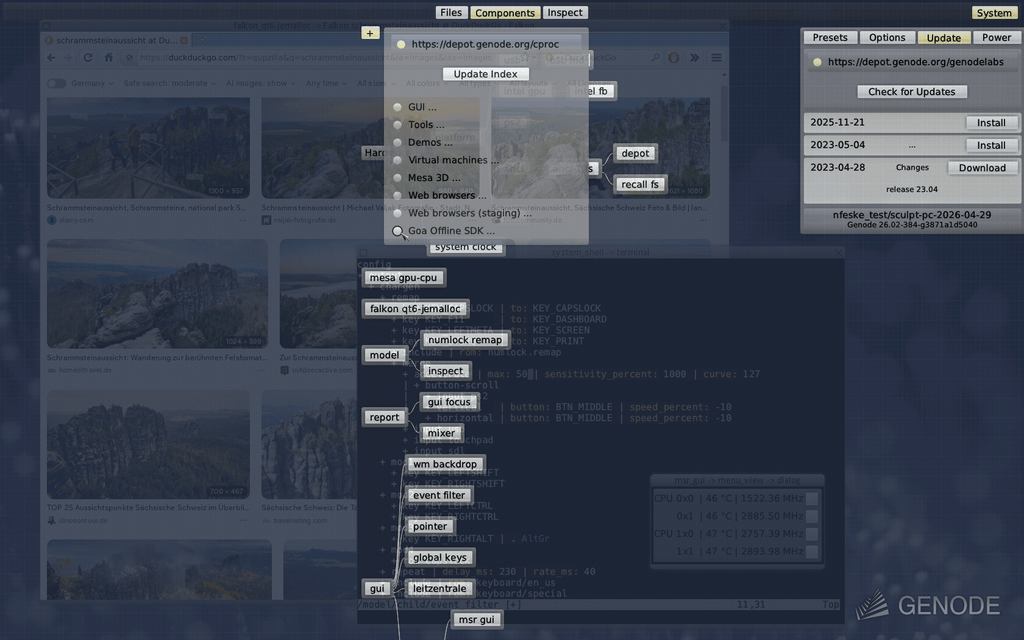
Sculpt is a component-based desktop operating system that puts the user in the position of full control. It is empowered by the Genode OS Framework, which provides a comprehensive set of building blocks, out of which custom system scenarios can be created. The name Sculpt hints at the underlying idea of crafting, molding, and tweaking the system interactively. Starting from a fairly minimalistic and generic base system, this tour through the Sculpt system will cover the following topics:
-
A boot image that is a live system, rescue system, and bootstrap system all in one,
-
Connecting to a wired or wireless network,
-
Managing and accessing storage devices,
-
Installation,
-
Ways to tweak and introspect the system, and
-
Integrity-protected package management, system update, and rollback.
Community
The best place to learn more about using and tweaking Sculpt, to follow the work of the developers, and to get hold of announcements of new software and features is the federated Genodians blog:
- Genodians.org community blog
Feedback and contact
Your feedback is appreciated!
- Participate in the community forum
- Join the Genode mailing list for technical discussion
- Contact Genode Labs for commercial inquiries
A printable PDF version of this document is available at the Genode website.
Hardware requirements and preparations
Sculpt should be compatible with recent Intel-based PC hardware featuring Intel graphics, E1000 networking, Intel wireless, and AHCI/NVMe storage.
It is tested best on laptops of the Lenovo X and T series (X220, X250, X260, T430, T460, T470, T490, T14). For experimenting with Sculpt, we recommend getting a refurbished version of one of these. You may also find the unofficial hardware compatibility list helpful for identifying Genode-compatible hardware.
Sculpt has been tested with screen resolutions up to 3840 x 2160. Displays with a higher resolution are not expected to work. The sweet spot is a full-HD display.
Please revisit the BIOS settings of your machine in the following respects:
- VT-d enabled
-
Even though Sculpt is able to run without an IOMMU, we advise enabling this option for the sandboxing of device drivers.
- VT-x enabled
-
Hardware-assisted virtualization is needed to run VirtualBox on top of Sculpt.
- Execution prevention enabled
-
The standard Sculpt package is provided for x86-64 and expects your platform to support data execution prevention (abbreviated DEP or NX). If this feature is disabled your PC will just reboot on startup.
- Boot from USB enabled
-
Sculpt is usually booted from a USB stick.
- UEFI boot enabled
-
Sculpt boots via UEFI by default. The boot image is specially prepared such that it can be started via legacy boot on older machines. However, booting it via legacy boot on a modern machine is hit or miss.
- UEFI secure boot disabled
-
The Sculpt boot image is not cryptographically signed.
- Optimize for performance when battery powered
-
If the latter is not set, the hardware may behave erratically (e.g., non-working trackpoint when on battery).
Getting a first impression
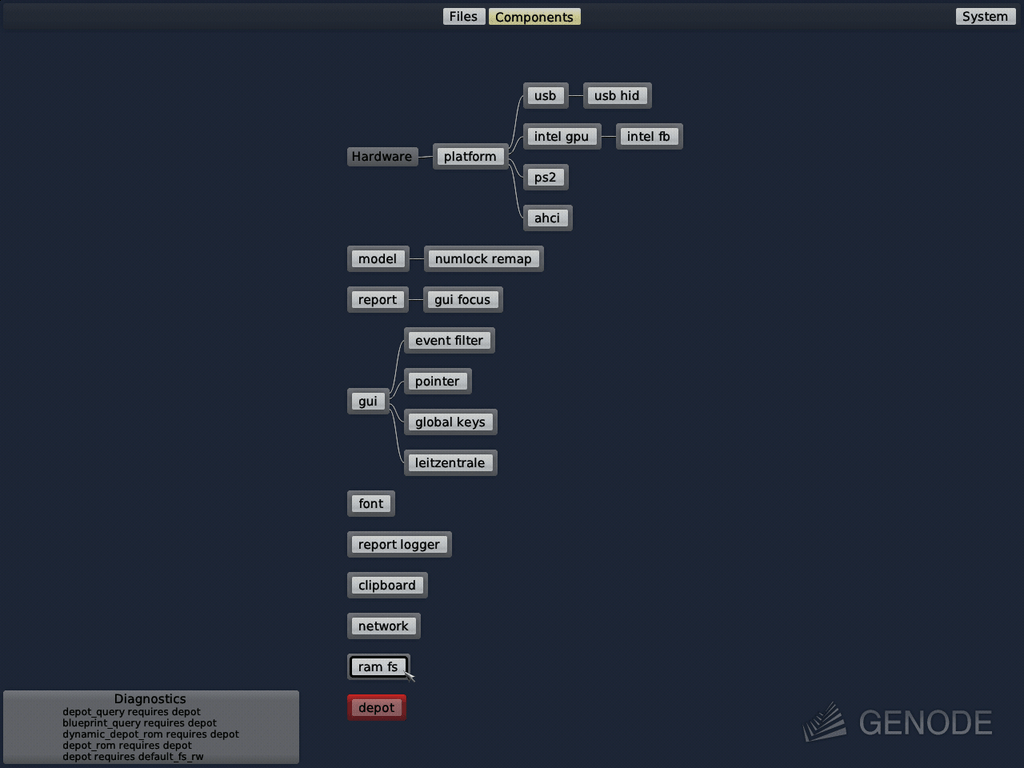
Sculpt is best explored by first booting the prebuilt disk image downloadable from https://genode.org/download/sculpt. Right after system boot, Sculpt's system-management user interface ("Leitzentrale") appears. The panel at the top of the screen contains two centered tabs for switching between the "Components" view and a "Files" view. The components view displays a live graph of the software components and their relationships. It also provides convenient access to the connected storage devices. The "System" button on the right side of the panel reveals a menu for system-global operations like resetting the machine, enabling optional features, or picking a pre-defined system composition from a selection of presets.
|
The main user interface is the component graph, which reveals how all the building blocks of the system relate to each other. A click on a component reveals the set of components it relies on (its trusted computing base) along with additional details and controls. Each connection means that the component on the right side relies on the component on the left side. Should the graph not fit on the screen, it can be vertically positioned using a scroll wheel or the page-up / page-down keys.
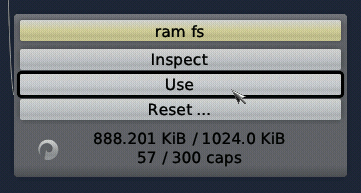
The red-tinted "depot" component along with the diagnostic messages in the lower left corner indicate that some precondition for using Sculpt OS is not yet satisfied. The system does not yet know where to store data. Select the in-memory file system as default storage location by clicking on the "ram fs" component in the graph and pressing the "Use" button. This way, software will be installed solely into memory without accessing any real storage device.
|
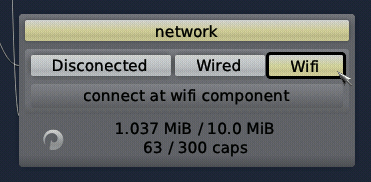
Enable networking in the network component by selecting one of the "Wired", "USB", or "Wifi" options, which prompts the system to start the corresponding driver component.
|
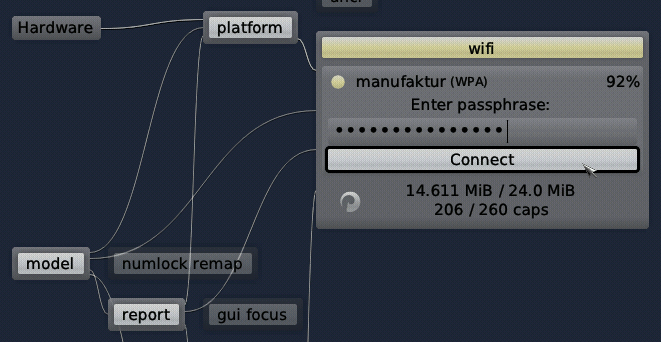
In the "Wifi" case, click on the wifi driver (close to the platform component at the upper part of the graph), select an access point and enter the corresponding passphrase, if needed. Once associated with the wireless network, a successful network connection is indicated by the IP address displayed in the dialog of the network component.
|
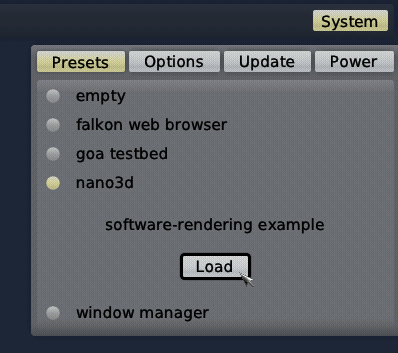
With a storage location selected and established network connectivity, it is time to give a preconfigured example sculpt scenario a quick try. The system menu at the upper-right screen corner hosts a couple of presets to play with. As a first test, let's load the nano3d preset.
|
When loading the preset, Sculpt will automatically download all the needed ingredients into the selected RAM file system and start the components of the demo scenario, which presents a simple spinning object that follows the mouse. Press F12 to toggle between the administrative user interface and the running preset at any time. You may give the other presets a try as well:
- empty
-
takes you back to the initial state.
- falkon web browser
-
runs a disposable Chromium-based web browser entirely in memory.
- goa testbed
-
allows developers to use Sculpt OS as a remote test target using the Goa SDK.
- window manager
-
is a suitable starting point for creating a desktop-computing user experience on Sculpt OS.
Composing a system from scratch
Let's discover how to sculpt a custom scenario by starting with the empty preset that takes us back to the initial system state. In the following, we will build up a custom system by integrating one component after another.
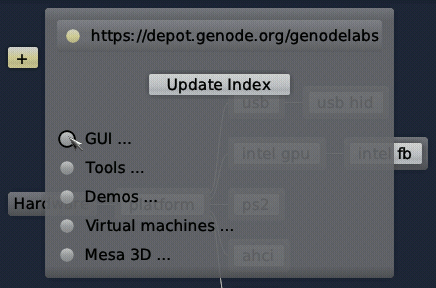
The gateway for installing and starting individual components is the unassuming + button of the components view, which opens a popup menu. The popup menu presents a choice of software sources - with "genodelabs" being preselected - along with an "Update Index" button. By updating the index, Sculpt downloads a catalog of components offered by the selected software provider. Once the index is downloaded, the catalog is presented as a hierarchically structured menu.
|
Software offered by different providers can safely be installed side by side because Sculpt keeps downloads from different providers separated. The default "genodelabs" provider offers components officially provided by Genode Labs. Think of each provider as a different individual. The providers known by the default system image are members of Genode's core developer team. One can add a new provider by supplying a custom URL using the "Edit" button. Note that by merely knowing a URL but no public key, Sculpt won't be able to verify the integrity of software obtained from such manually added providers. However, even if neither trusting one particular software provider nor the integrity of the download, one can still install and use the provided software without risk as long as one does not explicitly grant the untrusted components access to sensitive parts of the system. The judgement of trust is entirely yours.
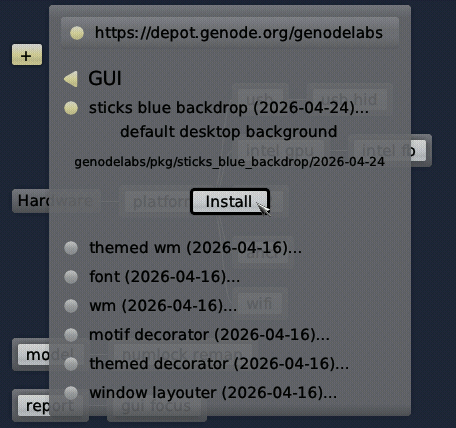
As a starter, let's add a desktop background. In the "GUI ..." sub menu, a click on the first item named "sticks blue backdrop" presents us with the option to install the package.
|
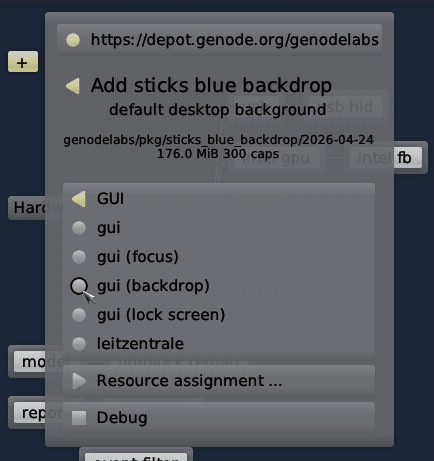
A click on the "Install" button triggers the download of the package and its dependencies. Once the download is complete, the menu presents a configuration dialog that allows you to define the interplay of the new component with the system. In this particular case, you have to decide for a GUI service to be used by the backdrop.
|
The first option "gui" would grant direct access to the system's low-level GUI server, which is normally not used by applications but by higher-level GUI servers like a window manager. The second option "gui (focus)" is preserved for a single component that controls the keyboard focus. The third option "gui (backdrop) would connect the component to the special "desktop background" GUI session, which appears as a layer behind all other applications. The fourth option "gui (lock screen)" would give the component the privilege to act as a global screen lock. The last option "leitzentrale" would allow the component to appear integrated into the administrative user interface. In our case, "gui (backdrop)" is the correct choice. Once the configuration is complete, a new button for adding the component to the system appears.
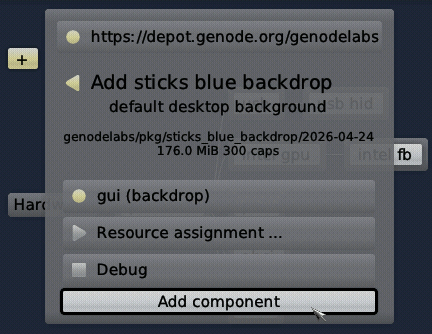
|
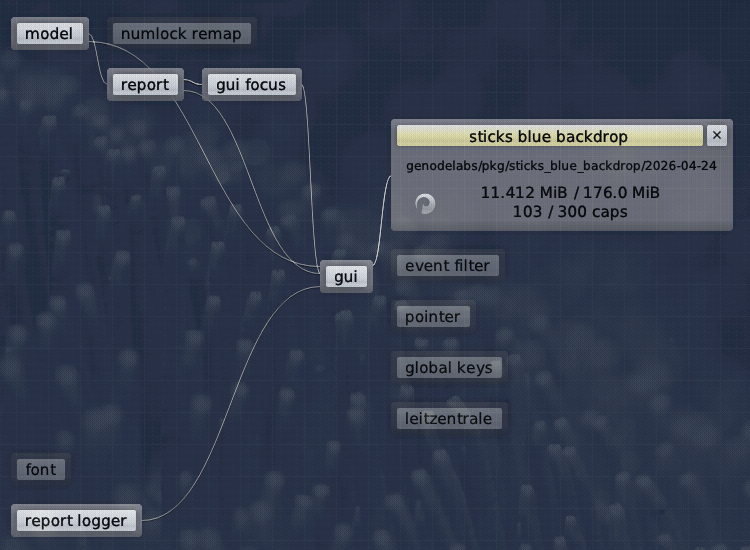
After pressing the button, you should notice a slight visual change. Press F12 to toggle between the Leitzentrale and the desktop. Now, the backdrop should become visible in full glory. In the component graph, the new component appears connected to the GUI. A click on the component reveals further information. The upper-right "x" button can be used to remove the component from the system. A click on the circular icon in the lower-left corner restarts the component.
|
As a next step, let us add a window system. In the + menu, you can find a readily packaged window system at GUI -> themed wm. After installing the package, you are asked to take five decisions:
The GUI (focus) should be assigned to "gui (focus)" to put the window manager in charge of controlling the keyboard focus, which is part of its job after all. The GUI should be assigned to "gui" as the basic mechanism to be used for graphical output and user input for the windowed applications. By assigning Report (shape) to pointer, we allow the window manager to report mouse-cursor shapes to the pointer component. By assigning _Report (clipboard)_ to clipboard, we grant the window manager the right to change the content of the global clipboard. Vice versa, by assigning ROM (clipboard), we permit the window manager to obtain clipboard content.
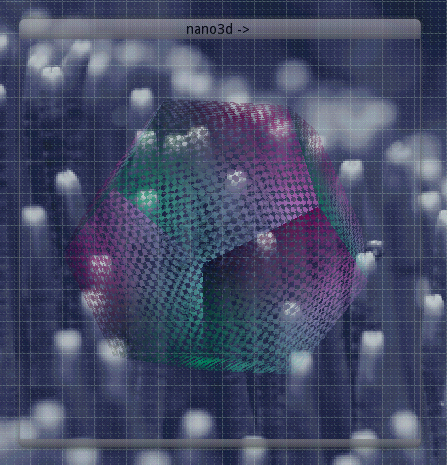
After adding the component, the "themed wm" will appear in the components view. To give the window system a quick try, add the small demo you can find at Demos -> nano3d and assign its GUI to our "themed wm". You will be greeted with a window as follows.
|
Next, let us add a small Unix-like subsystem called system shell hosted in a window. Select and install Tools -> system shell from the menu. The configuration dialog is a bit more elaborate this time.
- GUI
-
defines the GUI server that should host the terminal. Select "themed wm".
- File system (model)
-
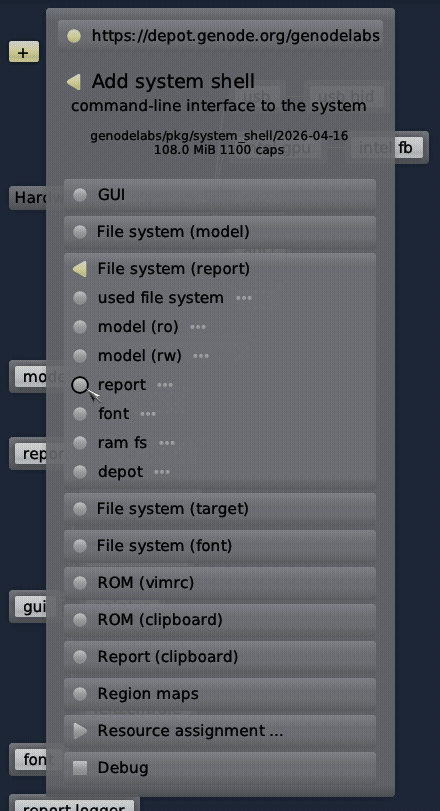
defines which file system should be mounted at /model/ inside the little Unix-like subsystem. There exist a number of options. By selecting model (rw), we grant (read and write) control over the whole system. It goes without saying that this should not be done light-heartedly. However, since we trust the "system shell" package from Genode Labs, let's do it.
- File system (report)
-
defines the file system to be mounted at /report/. By selecting "report", we allow the instance to look at all the information reported by other components.
- File system (target)
-
defines a file system to be mounted at /rw/. This can be any file system you'd like to work with or explore, for example the "ram fs".
- File system (font)
-
defines the place where to obtain the font used by the terminal. Select the "font" component that already exists for serving the administrative user interface.
- ROM (vimrc)
-
defines the configuration for the vim text editor used within the instance. Select "model (vimrc)" to grant read-only access to this information.
- ROM (clipboard)
-
defines the service to obtain clipboard content from. Select "themed wm" (not "clipboard").
- Report (clipboard)
-
defines the service for reporting new clipboard content. Select "themed wm". More information about the integration and use of the clipboard can be found in a dedicated article.
- Region maps
-
Select "custom virtual memory objects" to allow the subsystem to manage its virtual memory layout by itself.
With those decisions taken, a fresh system shell can be started, which appears in a window.
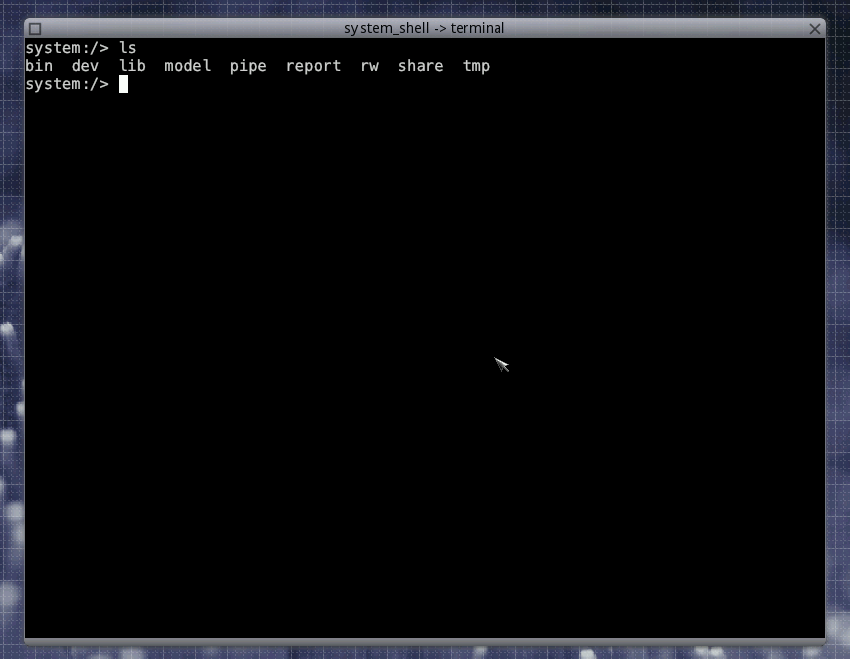
|
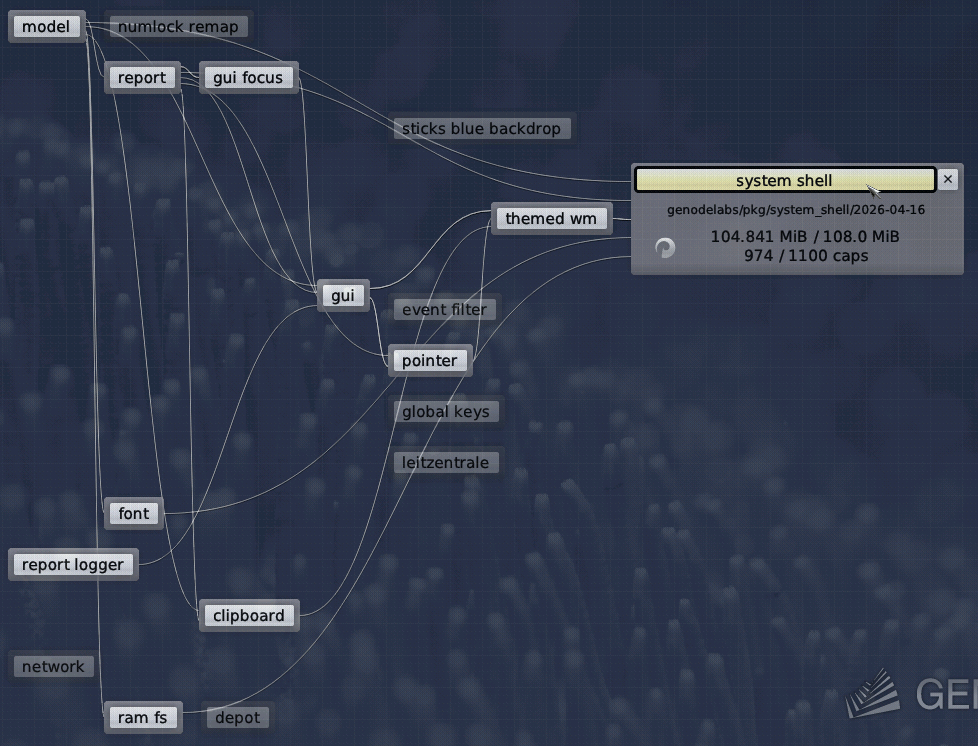
When selecting the "system shell" component in the graph, the relationship to the other components of the system is presented. This provides a convenient way to reveal the trusted computing base of the selected component. For example, since there is no connection from system shell to the network, we know that this component is isolated from the network. The network-related components are outside the trusted computing base of the system shell.
|
Using a persistent storage device
The steps described above used an in-memory file system (ram fs) as target for Sculpt OS, which is a nice playground for experimentation but otherwise impractical for real-world use because all downloads and configurations vanish when rebooting the system.
Sculpt OS supports USB storage, NVMe, and SATA (AHCI) as storage target. Only one target can be selected for use at a time. To select one of those targets for use, make sure to have deselected the "Use" button of the "ram fs" component.
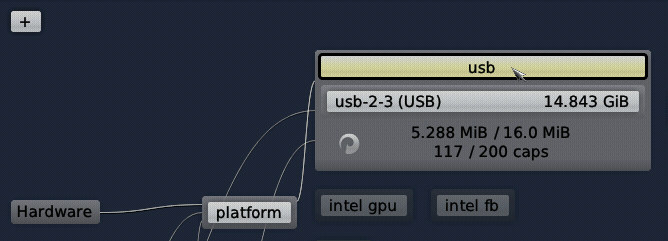
The following steps describe the use of the USB stick that holds the Sculpt OS boot image as target. The USB stick can be accessed be selecting the "usb" component.
|
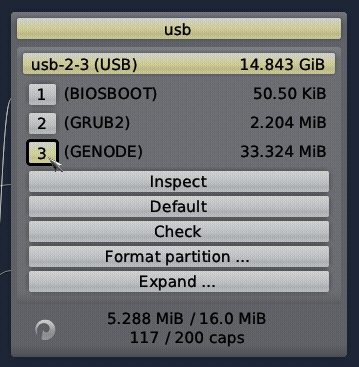
Upon selecting the USB stick, one can see three partitions. The first two partitions are necessary for booting from the stick whereas the third partition labeled "GENODE" is designated as Sculpt storage target. This partition is merely large enough to hold the system image of about 33 MiB, but there is no room for additional data yet. When selecting the 3rd partition, the dialog offers several management operations.
|
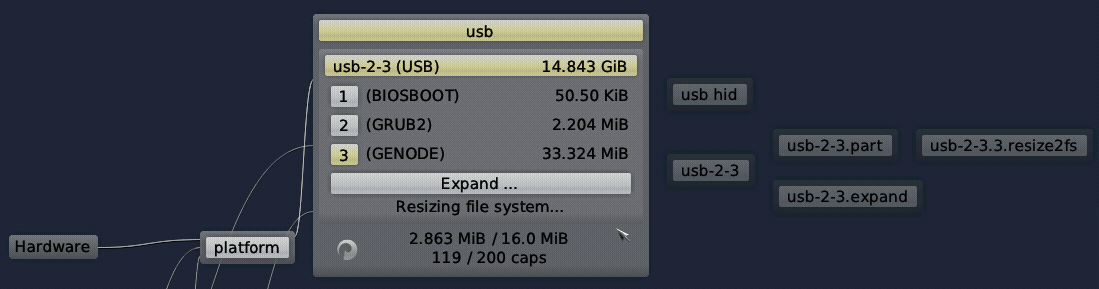
One can use the "Expand" operation to enlarge the partition up to the capacity of the storage device,
|
Under the hood, the expand operation modifies the partition table and resizes the file system, which you can observe by the additional components at the right. Depending on the used USB stick, resizing can take some time. You may have a glimpse at the progress by selecting the "log view" option in the system menu.
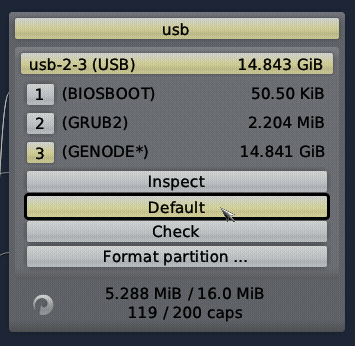
|
Once the resizing has completed, you can see that the partition has grown to a practical size. In principle, one can manually instruct Sculpt OS to use this partition as storage target via the "Use" button. To automate this manual step, the partition can be marked as preferred storage target by pressing the "Default" button. This renames the partition to "GENODE*", which tells Sculpt to use it automatically at boot time. By combining this automatism with the steps described in Section Making customizations permanent, all of your customizations can take immediate effect at boot time.
Further exploration
The presets offered in the "System" menu provide suitable starting points for creating custom Sculpt systems. In particular the "window manager" preset is a useful baseline for desktop-like use cases, providing a ready-to-use window system along with a system-shell window. Using this preset is generally preferable over the single "themed wm" component because it gives finer control over the individual parts of the window-system stack. For example, it is able to remember the window layout across reboots, and it allows for updating or restarting the window decorator independently.
Of course, there are many more components to explore and to combine. For inspiration, please follow the postings at https://genodians.org, for example:
- Copy and paste mechanism
-
Sculpt provides a built-in mechanism for exchanging data between virtual machines, terminals, and Qt applications:
- Use GNU/Linux inside a virtual machine on top of Sculpt
-
There is a ready-to-use package for downloading Debian for the use inside a virtual machine along with the ability to use VirtualBox guest additions:
https://genodians.org/jws/2019-07-08-download_debian-guest-additions-reloaded
For configuring and starting the virtual machine, you may find the following guides useful:
https://genodians.org/jschlatow/2022-10-27-fresh-vm-on-sculpt
https://genodians.org/m-stein/2019-03-07-vm-with-sculpt-ce-preview
You may even go a step further by re-using an existing Linux installation inside VirtualBox on Sculpt:
https://genodians.org/jschlatow/2021-04-23-start-existing-linux-from-sculpt
- Disposable Firefox VMs
-
Use a minimalistic Tinycore-Linux system to run Firefox in memory without access to any persistent storage:
https://genodians.org/alex-ab/2019-03-06-disposal-browser-vm
- Advanced window management
-
The features of the "window system" preset described in detail. Let Sculpt remember window positions across reboots, swap out window decorations on the fly, and have fun with manipulating the window layout directly via a textual interface.
- Encrypted file store
-
The file-vault package provides Sculpt users with an easy way to set up and use an encrypted file store using Genode's custom Tresor block encrypter.
https://genodians.org/m-stein/2021-05-17-introducing-the-file-vault
- Network connectivity via LTE
-
The article describes several ways of using Genode's LTE modem driver as network uplink.
- Interactive CPU frequency and power steering
-
Modern PCs provide plenty of metering and power-management options. The component described in the following article makes these features available via an interactive user interface. One can watch the temperature of each CPU core, monitor the individual CPU frequencies, switch between power profiles, and reveal details about power draw.
- Screen locking
-
To prevent unauthorized interactions while leaving one's system temporarily unattended, the optional gui-lock component becomes handy.
Base system
Unless customized, the Sculpt base system resides as a self-contained live operating system on a USB stick, not installed on disk. This has two advantages. First, it makes the update of the base system straight-forward and completely risk-free. Simply install the new version on a second USB stick. Should the new version cause any trouble, one can fall back to the original one by swapping the USB sticks. Second, it alleviates the need to install any boot-loader infrastructure on disk. In fact, one can use an entire disk as one file system without creating a partition table.
Note that Genode is not limited to booting from USB. It also supports the use of partitions. But for this guide, we keep things as simple as possible.
System overview
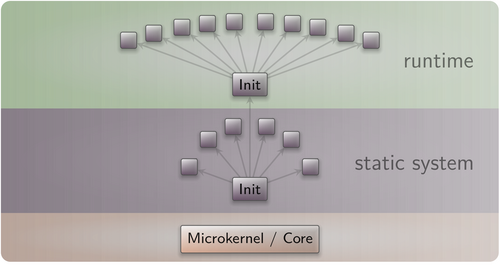
The Sculpt system consists of three layers. At the lowest level, a small microkernel of only about 15K lines of code creates the notion of protection domains and provides mechanisms for inter-component communication. Only the microkernel contains code that is executed in privileged CPU mode. All other components are executed at user level. Initially, the kernel hosts a hand full of hardwired components that introduce the system's dynamic data model in the form of an in-memory file system, a component that translates the deployment described by the data model into a dynamic runtime configuration, and the actual runtime subsystem bringing this configuration to life.
|
The initial state of the system's data model is defined by the system image. It establishes the deployment of a predefined set of components covering the components needed to accommodate the administrative user interface, including the device drivers needed for graphics and user input.
Thus far, the system is rather fixed and boring. It becomes expandable and exciting by making the system's data model available to vetted components such as the administrative user interface. With access to the data model, the component composition can be dynamically manipulated at runtime. In fact, with access to the system's data model, all building blocks of the entire system (except for the hand full of hard-wired components of the static system) is open for customization and rearrangement. Vice versa, the system can at wish be completely sealed by removing all components with access to the data model. With no component accessing the data model left, further modification becomes impossible by design.
Deployment definition
The component composition is defined by the deploy file at the root of the model file system. Each component corresponds to a child node. Multiple child nodes can be grouped into options. All options reside in the option/ subdirectory. The deploy file can include all children defined by an option using an option node named after the option. For example, option board includes all the children defined at option/board in the deployment. Note that all children must have unique names. Child nodes of different options can refer to each other.
Component configurations
Components can be configured using the config sub node of its child node or by a detached configuration file. By convention, such configuration files are placed at the model's child/ subdirectory and named after the respective component. For example, the configuration of the gui component can be found at child/gui.
Report subsystem
The report subsystem aggregates logging data and reports generated by various deployed components. Internally, it is an in-memory file system that organizes reports into subdirectories according to the reporting component. For example, the accesspoints report produced by the wifi driver is captured at wifi/accesspoints. Log data is written to a log file at the root of the report file system. Each line is prefixed with the originator of the log message. Besides aggregating reports and log messages, the report file system contains two special files that are useful for introspection.
First, the state file contains the status of all children currently running. Besides resource usage and limits, it reflects special conditions such as resource starvation or the exit code of an exited component. The level of detail can be adjusted in the model's runtime configuration. For example, by setting the requested attribute of the report node to yes, the state will present all connections initiated by all children.
Second, the runtime file contains the entire view of the wiring of the runtime system. It also contains diagnostic information about troubled children (stalled nodes) such as missing dependencies or incomplete packages.
Leitzentrale subsystem
The Leitzentrale component gives you - the user - full control over the system's data model. You are free to inspect and manipulate the system in any way you wish. The German term Leitzentrale refers to a control center that requires a certain degree of sophistication from the operator, which would be you.
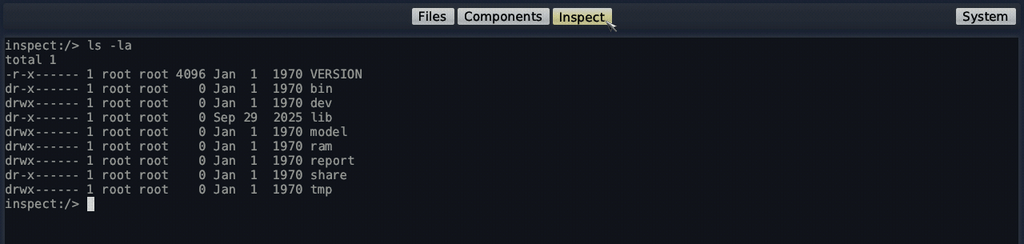
The Leitzentrale can be toggled at any time by pressing F12 and will be enabled right after boot. It presents itself with a minimalistic GUI for accessing the storage devices attached to your machine and for configuring your network connectivity. Most importantly, however, it allows the user to access the model and report file systems. Both file systems are readily accessible under the "Files" tab of the panel. The file browser allows you to traverse directory hierarchies, inspect individual files, and edit files. Alternatively to the "Files" tab, Sculpt 26.04 features a command-line interface. To spawn this command-line interface, click on the "ram fs" component in the graph and select "Inspect". In the panel, a third tab named "Inspect" appears, which hosts the command-line interface.
|
The inspect tab hosts a small Unix-like subsystem as user interface. Don't let the presence of a Unix shell mislead you. Sculpt is not a Unix system. It merely uses Unix-like subsystems as convenient tools for managing and editing files. Within the inspect tab, you can interact with both the report and the model file systems using familiar commands such as the bash shell, a subset of coreutils, and Vim.
Note that the interactive inspect view is not bullet-proof. Should you get stuck, you may re-spawn it at any time by toggling the "Inspect" button.
Besides the interactive shell, the Leitzentrale employs a simple viewer of the most recent diagnostic log messages. You can toggle the log display via the log view option in the system menu. Each line of the log is prefixed by the label of the originating component. For detailed analysis, the complete log is also available at report/log and can be browsed with Vim in the inspect window.
Tweaking and inspecting the system
The Leitzentrale subsystem empowers you to interactively inspect and tweak the running system either by using the file browser hosted in the "Files" tab or by using the command-line interface and the Vim text editor provided by the "Inspect" tab. The system's data model has the form of text files using Genode's human-inclined data syntax.
Interactive file browser
The "Files" tab of the panel switches the main screen area to a simple file browser that lists all file systems available, in particular the model and report file systems. By toggling one of the file-system buttons, the respective directory hierarchy can be browsed. When hovering a file, an "Edit" or "View" button appears, which can be used to open the file in a text area that appears on the right side of the file browser. The editor supports the usual notepad-like motions, operations, and shortcuts (control-c for copy, control-v for paste, control-s for save).
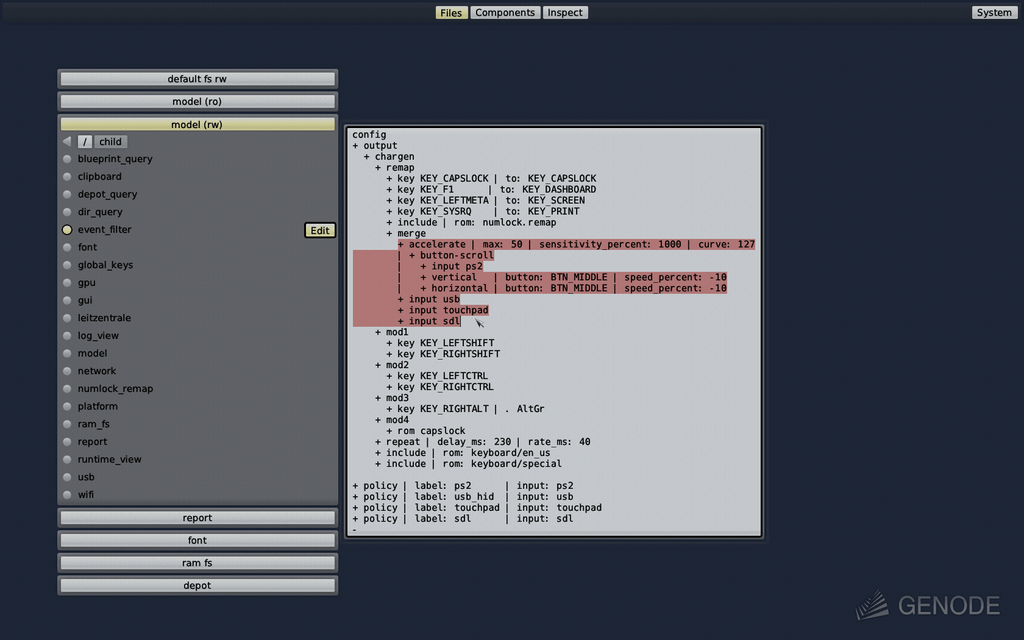
|
Note that the file browser does not yet support file operations like the copying, renaming, or removal of files. Also, the editing of files with long lines or the browsing of directories with many entries is not appropriately covered yet. As a fallback when encountering these limitations, Sculpt still features the Unix-based inspect tab, which can be activated by toggling the "Inspect" button inside the USB or storage nodes of the component graph.
Vim skills recommended for using the inspect tab
With the "Inspect" button toggled for at least one file system, the inspect tab leverages (a subset of) GNU coreutils, bash, and Vim as the user interface for sculpting the system. If you are not yet familiar with using Vim, you may take Sculpt as a welcome chance to get your toes wet. To enjoy the experience, you should be comfortable with the following operations:
-
Opening and navigating within a text file (moving the cursor, using / to search),
-
Using the insert mode to make modifications,
-
Reverting accidental modifications (u undo),
-
Saving a modified file (:w),
-
Opening a file in a secondary buffer (:e),
-
Switching between buffers (:bn for next, :bp for previous),
-
Copy and paste (v start selection, V start line selection, y remember selection, p paste remembered selection),
-
Exiting Vim (:x save and exit, :q! discard changes).
Adjusting the user-input handling
By default, Sculpt uses the US-English keyboard layout, but it offers a few alternative keyboard layouts like French and German in the dialog of the event-filter component. A change of this setting is reflected in the /model/child/event_filter file, which is the configuration for the event-filter component. You are free to tweak the file manually according to your needs. Any change takes effect as soon as you are writing the file. There is no guard rail. A fat-fingered mistake can lock you out from further interaction.
For example, to remap the capslock key to escape, change the following line
key KEY_CAPSLOCK | to: KEY_CAPSLOCK
to
key KEY_CAPSLOCK | to: KEY_ESC
After saving the file, a Vim user's life suddenly becomes much more pleasant.
Take the time to review the remaining parts of the event-filter configuration. The nested configuration nodes define a hierarchy of filters that are applied in the order from the inside to outside There are filters for merging events (merge), remapping buttons and keys (remap), supplementing symbolic character information (chargen), pointer acceleration (accelerate), and emulating a scroll wheel by moving the pointer while pressing the middle mouse button (button-scroll).
Exploring the living construction plan
You can review and manipulate the construction plan of the entire system and its subsystems by browsing the model file system, starting at the deploy file and traversing into the options and child configurations. Follow the wiring between the components by reviewing the connect nodes. Each connection resolves a requirement (left side) to a service (right side), which is usually another child.
Try out the following tweaks:
-
Change the transparency of the Leitzentrale by modifying the alpha attribute of the fader_config component at /model/child/leitzentrale.
-
Change the font size of the log view component by adjusting the size_px attribute for the log_terminal at /model/child/log_view.
-
Display the log view in a window instead of the Leitzentrale by changing its gui connection in /model/option/log_view from child leitzentrale to the window manager.
You may also enjoy tinkering with the configuration of the GUI server, which is located at the file /model/child/gui. For example, you may change the background color the "default" domain.
System resources
Whenever adding a new component via the + menu, one has to define how to connect the component with the rest of the system. It is important to know what the presented options mean to take educated decisions.
|
Each choice represents a connection to a system resource of a particular type. Initially, the presented options are resources that are built-in into Sculpt's base system. Once new components enter the picture, their services appear as further items in the connection dialog.
| Resource type | Interface | Built-in options |
|---|---|---|
| Capture | Capture | |
| Device access | Platform | |
| Direct memory-mapped I/O | IO_MEM | raw hardware access |
| Direct port I/O | IO_PORT | raw hardware access |
| Direct device interrupts | IRQ | raw hardware access |
| Event | Event | |
| File system | File_system | |
| GPU | Gpu | |
| GUI | Gui | |
| Hardware virtualization | VM | virtualization hardware |
| Network | Nic | |
| Network uplink | Uplink | |
| Play | Play | |
| Protection domain | PD | system PD service |
| Real-time clock | Rtc | |
| Record | Record | |
| Region maps | RM | custom virtual memory objects |
| Report | Report | |
| ROM | ROM | platform information |
| build information | ||
| Terminal | Terminal | debug monitor |
| Tracing | TRACE | system |
| deployment | ||
| component | ||
| USB | Usb |
Table 1: Overview of resources
Table 1 gives an overview of the different built-in resources and their types. The names given in the interface column correspond to the Genode session types as used in the routing rules of the init component, in particular the init instance hosting the runtime using /report/runtime as input. Let's look into each type in more detail.
GUI
The GUI service interface is provided by the gui server component as well as the higher-level window manager. It entails both the ability to perform graphical output and the reception of user input. Note that the low-level GUI server keeps its client applications isolated by default. One application cannot see the output of other applications nor can it sniff user input globally. One can connect multiple applications - trusted and untrusted alike
- to the low-level GUI server without fear.
However, in typical scenarios, applications don't use the bare-bones system GUI server directly but rather employ a window manager that sits in-between the GUI server and the applications, and equips the system with the notion of windows.
The GUI server provides the following GUI options.
- gui
-
allows a component to perform graphical output and handle pointer events, but no keyboard input. It is designated as a base mechanism for the window manager, or for implementing GUI features like global overlays or status displays.
- gui (focus)
-
grants control over the keyboard focus. It should be assigned to only one component, typically a window manager. However, in principle, another component like the system shell can be connected to it and thereby becomes able to receive keyboard input.
- gui (backdrop)
-
allows a component to present its graphical output in a dedicated layer behind all other applications. The desktop background cannot receive keyboard focus. But it can respond to pointer events (mouse clicks and motion).
- gui (lock screen)
-
assigns the component the role of a lock screen. Once the component is present at the GUI, it seizes the keyboard focus and is able to cover the entire screen.
Note that - with the current version of Sculpt - global keys as defined in the gui configuration are not affected by the lock screen, i.e., as is the case with the screen key assigned to the window manager.
ROM
ROM stands for read-only memory. A ROM service reveals information to its clients, but a client cannot change the information. Note that the provided information does not need to be static. It can potentially change over time. Whenever that happens, the ROM service informs its clients about the availability of a new version. The base system provides the following built-in ROMs:
- report (global_keys/capslock)
-
the system-global state of the capslock key. It can be handed out to components like virtual machines to keep the capslock state of guest operating systems consistent with the host.
- model (vimrc)
-
the configuration of the Vim text editor as used in the Leitzentrale's inspect window and managed at /model/vimrc. It allows you to customize one vim configuration at a central place and use this configuration consistently across Sculpt's inspect window and manually deployed components.
- model (status)
-
reflects the system-global power state. It is used by the optional ACPICA driver to respond to requests for a system reset or power-down.
- platform information
-
provides details about the underlying kernel and hardware. Some drivers and virtual machine monitors need this information to take platform intrinsics like the concrete flavor of virtualization hardware into account. Normal applications should never need this information.
- build information
-
provides details gathered during the build process of the Sculpt system, like version numbers or the configured default depot user. It is used by the Sculpt manager and debugging-support components.
- clipboard
-
provides the current content of the global clipboard. The content can be accessed by a component only when the user interacts with the component. This prevents overly nosey components from snooping the clipboard content.
Report
Report services play the counterpart of ROM services. They allow clients to report information in a fire-and-forget fashion, but not to retrieve information. As explained in Section System overview, the report component aggregates incoming reports into the in-memory report file system. The incoming reports are organized according to their origin (their session labels). By granting a component access to the report server, the component can contribute to this knowledge base. However, keep in mind that the report file system is limited in size. A misbehaving component may put the system in jeopardy by producing overly sized reports.
- pointer
-
Reports labeled with shape play a special role. They are routed to the mouse pointer and thereby enable graphical applications to suggest context-specific pointer shapes. The application-provided shape is shown whenever the corresponding application is hovered.
- clipboard
-
enables components to write new content to the system-global clipboard. This operation, however, is restricted to the single component that the user currently interacts with. This prevents rogue components from spamming the global clipboard.
Note that when using a window manager, always connect the shape and clipboard reports of windowed applications to the window manager, not the pointer and clipboard. This is because both the pointer and clipboard implement dynamic policies by correlating the GUI state (hover, focus) with the identities behind report shapes or clipboard content. So the shape and clipboard connections must take the same path through the window manager as the GUI connections.
File system
A file-system service offers the storage and retrieval of data organized in a hierarchical directory structure. Access to a file system can be restricted to be read only. The distinction between read-only and read-writeable does not exist per file but for the entire file-system resource.
Of course, many use cases call for finer-grained access control. For this reason, Sculpt OS allows for the assignment of individual directories as file-system resource when integrating a new component. To browse the directories present on a file system, toggle the expand icon - symbolized by three little dots - of the file-system entry. This will narrow the view on only the single file system and its directories. Should a directory have subdirectories, a corresponding expand button allows for browsing deeper into the hierarchy. To go back to a higher directory level, un-toggle the corresponding expand icon.
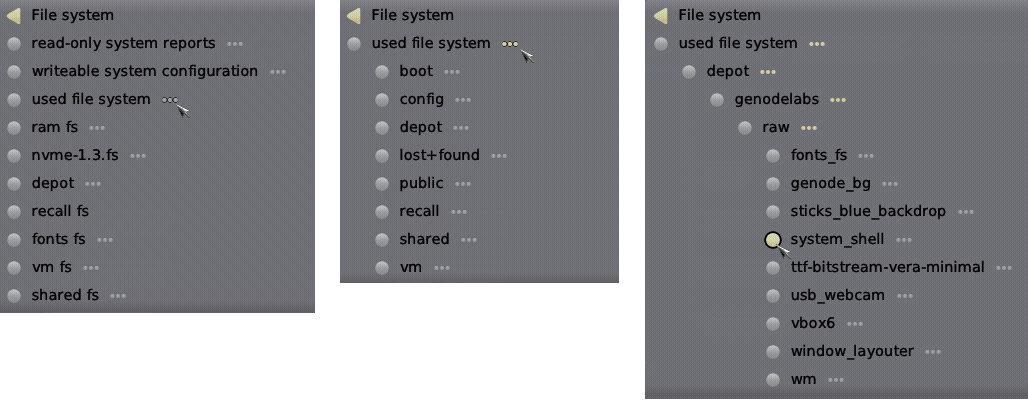
|
Sculpt has the following built-in file systems.
- model (rw)
-
corresponds to the system's data model described in Section System overview. The ability to access this file system is equal to total control over the system. Hence, never assign this file system to components that you don't fully trust.
- model (ro)
-
a read-only version of the system's data model.
- report
-
allows the client to inspect the global state of the system. The reports found in this file system are organized in a directory structure that corresponds to the system structure. For example, all reports generated by the wifi driver reside within the wifi/ directory. Note that this global state may contain sensible information. For this reason, the system reports should not be handed out to components that are suspected of information leakage.
In order to access persistent storage, additional file-system server components can be deployed. Those components, in turn, need to be connected to the corresponding block devices.
- used file system
-
is the file system selected for the use of Sculpt. In principle, the specific file system such as "usb-1-10.3.fs" can be selected directly. But when moving configurations from one device to another, the generic "used file system" option avoids tying the component to a particular physical file-system name. The resulting configuration works regardless of where it is deployed.
Block device
A block-device resource allows for the block-level storage and retrieval of data whereas a block-device can be read-only or read-writeable.
Device access
With Sculpt, device drivers can be installed and used like any regular component. In contrast to plain applications, however, device drivers need to access the corresponding device hardware. This access is guarded by the so-called platform driver. The platform driver has two purposes. First, it uses the IOMMU to isolate devices from each other and to restrict the reach of each device to the memory explicitly assigned to the device (DMA buffers). Second, it arbitrates the access of device-driver components to devices.
Regarding the latter, the platform driver differentiates categories of drivers, namely wifi, network, audio, and ACPI. When assigning one of those resources to a driver component, the driver will observe a virtual PCI bus with only the devices that fall in the chosen category. To learn how devices relate to driver categories, have a look at /model/child/platform.
USB
By connecting a component to usb, the component becomes able to access individual USB devices. One prominent use case for the USB resource is the direct assignment of USB devices to virtual machines. The assignment of USB devices to components is described in Section Assignment of USB devices to components.
Real-time clock
The real-time clock enables a component to know what time it is. The service is optionally provided by a package called "system clock".
GPU
Access to the GPU (graphics processing unit) service allows a component to utilize hardware-accelerated graphics on machines that feature a GPU supported by Sculpt. Supported are Intel GPUs of generation 8 (Broadwell) to 12 (Tiger Lake).
Note that GPU support is a very recent feature and has thereby not received intensive testing yet. Please regard it as experimental and use it with caution.
Region maps
The region-map service of the base system gives components a flexible way to manage their virtual address spaces manually. This mechanism is used by a few advanced components only, most specifically virtual machine monitors. Access to the region-map service is not security critical. But as it is rarely needed, it is not granted by default to limit the potential (attack) surface of the base system as far as possible by default.
Direct memory-mapped I/O, port I/O, and device interrupts
These low-level services are provided by Genode's core component. They should never be needed by any regular component. Even device drivers don't use those services directly but rather rely on the higher-level device-access service described in Section Device access.
However, a few special use cases demand for such low-level access. In particular the use of ACPI functionality.
As a rule of thumb, never grant access of those resources to any component except you know exactly what you are doing and you completely trust the provider of the component.
Terminal
A terminal service provides a bi-directional input/output stream. Examples are a graphical terminal or a UART driver.
Sculpt's built-in debug monitor speaks the GDB protocol as a terminal service. The resource-assignment dialog for adding a new component offers a debug option as checkbox. If enabled, the new component is exposed as a debugging target (inferior) via the GDB protocol. A debugger can be connected as a client to the debug monitor to inspect and control all the inferiors present in Sculpt's runtime.
Tracing
The low-level tracing interface allows a component to observe and to manipulate all activities in the system. It should only be granted to components that are fully trusted.
Hardware virtualization
The hardware-virtualization service allows virtual machine monitors to leverage virtualization technology (Intel VT).
Protection domain
By default, each component implicitly relies on the protection-domain (PD) mechanism provided by the operating-system kernel. However, Sculpt OS allows for the optional interception of a component's interplay with this low-level mechanism through another component. This is useful for dynamic CPU-load balancing, debugging, or statistical profiling.
The option to select a protection-domain service is only displayed in the presence of at least one component that provides a PD service. Note that a PD service is able to exercise full control over each component that uses the service.
Network and uplink
Network services provide an interface for sending and receiving network packets. Sculpt's Leitzentrale conveniently manages drivers for wireless (wifi), wired (nic), and USB networking as well as the user-level network routing component (network). The network component multiplexes the network access among multiple network applications. By default, it acts as a virtual NAT router, handing out a distinct IP address to each client.
An uplink server is a connection point of a network driver, which supplies the driver with network packets to send, and accepts incoming packets received by the driver. In most situations, the network component provides this service. The routing rules are defined at /model/child/network.
Record and play
The record and play services enable components to record and play audio. These services are typically provided by the audio mixer, which is available as option in the system menu. The mixing rules are defined at model/option/mixer.
Capture and event
The capture and event interfaces serve as counter parts of the GUI interface. Whereas the GUI interface allows a client to put pixels on screen and receive input events, the capture and event interfaces allow a client to capture the screen and inject user-input events into the system. Normally, these interfaces are used by graphics and input-device drivers. However, they are also useful for remote-desktop scenarios, virtual keyboards, or for taking screen shots.
Note that those interfaces are security critical. When handing out a capture interface to a component, the component becomes able to observe the screen content of all applications present at the GUI server. Vice versa, by handing out an event interface to a component, the component becomes able to inject user-input events to the GUI server, acting on behalf of the user.
CPU-resource assignment
|
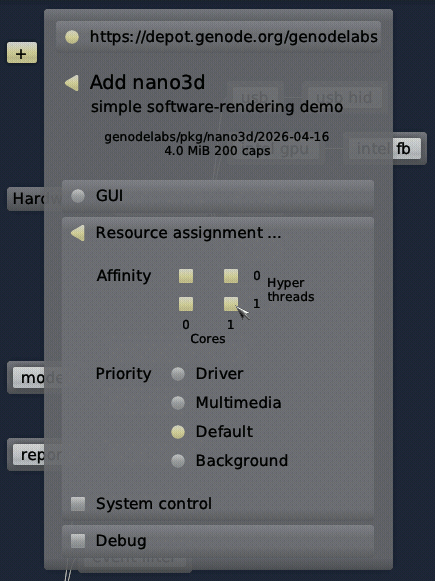
You may already have noticed the additional item "Resource assignment ..." in the component-configuration dialog. It leads to a sub menu for restricting the CPU usage of the new component. The configuration dialog shows a matrix of CPU cores where the x-axis denotes the physical cores and the y-axis the hyperthreads. By default, all available CPU cores are selected. You can toggle the nodes by clicking on them. The dialog ensures that the selection is always a rectangular area. So one click may affect nodes other than only the clicked one.
Below the CPU-affinity matrix, the dialog allows for the selection of the component's scheduling priority. Note that here the notion of priority refers to CPU scheduling profiles as opposed to nice levels. On kernels like NOVA that use hard static priority scheduling, a high-priority activity prevents all lower-level priorities from executing. Consequently, the assignment of a high priority comes at the risk of starving lower-priority components. The dialog presents four options:
- Driver
-
The highest priority should be preserved to latency-critical device drivers such as audio drivers. This option is also a sensible choice for trusted components that must stay somewhat responsive under any condition. For example, the components of the Leitzentrale GUI operate on this priority to preserve the user's control over the system even in the event of a rampaging high-priority device driver.
- Multimedia
-
The second-highest priority is recommended for latency-sensitive applications such as audio and video players as well as their dependencies. For example, it is the appropriate priority for window-management components.
- Default
-
The default priority is suitable for all regular applications as well as storage and networking components.
- Background
-
The lowest priority is designated for non-interactive best-effort workloads such as long-running computations. By assigning the background priority to such components, they won't impede the user's perception of the responsiveness of the system.
The "System control" option allows the new component to monitor or manipulate physical parameters like CPU frequencies, power consumption, and temperatures. Given the broad potential side effects of those parameters, this option should only be enabled in rare special cases. Grant it only to components you trust.
Service-level sandboxing
In order to deploy any component, all resources requested by the component must be assigned to appropriate services. For example, when adding a web browser, the browser's request for record and play sessions must be satisfied, which is natural when consuming multimedia content. However, in other situations, we may deliberately want to isolate the web browser from the audio hardware, forcibly preventing the browser from producing any noise or tapping the microphone.
This is where the so-called "black hole" component enters the picture, which can be enabled as option in the system dialog. The black-hole component provides pseudo services for most resources mentioned in the previous section, including audio, networking, video capture, USB, and ROM. Hence, the resource requirements of an untrusted component can be satisfied without exposing a real resource. This is especially useful for deploying highly flexible components like VirtualBox, which supports many host-guest integration features, most of which are desired only in a few scenarios. For example, to shield a virtual machine from the network, the "Network" resource of the VirtualBox instance can simply be assigned to the "black hole".
Runtime management
As a prerequisite for deploying user-selected components, a default storage location must be defined by selecting the "Use" button of a file system in the menu. For the start, it is best to select the "ram fs" as storage location. Once you are comfortable with Sculpt, you may make the installation and customizations permanent by using a real storage device instead.
The selection of a "used" file system has two immediate effects. First, any files present at /config/<VERSION>/ at the selected file system are copied to the model file system. As the RAM file system is empty, no files are copied. Second, the so-called depot/ is initialized at the selected file system. The depot is the designated place for the installation of software packages. By default, the depot is initialized such that the Sculpt system accepts software from Genode Labs and Genode's individual core developers. You may inspect the content of /ram/depot/ using the inspect view.
With a file system and an Internet connection selected, additional software can be installed and run. The most convenient way is the interactive use of the + menu to browse the catalogs of packages provided by software providers and to configure new component instances.
Additionally, the deployment can be controlled by the deploy file of the model file system and the option files located at the option/ subdirectory. The deploy file contains a child node for each running component. Such a child node specifies the package, the assigned resources, and the rules of how the component is connected with other components. Additionally, option nodes can refer to groups of children.
A config node within a child - when present - overrides the one provided by the package. So the configuration of each individual child can be freely customized, usually by taking the configuration delivered by the package as starting point.
Each time the deploy file or an option file is written, the change takes immediate effect. In particular, the Sculpt manager will automatically kick off the download of the referenced packages and its dependencies and thereby populates the depot. Once the download has completed, the children are started.
Storage device access and preparation
Whereas the RAM file system is practical for quick tests, it goes without saying that we want to persistently store data, programs, and configuration information on a storage device. Sculpt supports SATA disks, NVMe devices, SD cards, and USB-storage devices. Depending on the block-device controllers present, Sculpt starts the driver components "nvme", "mmc", and "ahci" as needed. A click on such a node reveals the attached block devices, possible operations, or - if a partition table is present - more details about the device structure. USB storage devices can be managed via the "usb" node.
Depending on the operation selected by the user, the Sculpt manager will automatically spawn helper components (hosted at /model/option/managed) to perform the selected operation. For example, by selecting the "Format device" operation, the Sculpt manager will create a tiny Unix-like subsystem with the selected block device mounted at /dev/block and e2fsprogs mounted at /. This Unix-like subsystem runs mkfs.ext2 as init process. Likewise, an existing EXT2 file system can be checked by activating the "Check" button, which triggers the execution of fsck.ext2 for the selected file system.
A particularly interesting option is presented at the last partition of the Sculpt USB stick. Initially - right after copying Sculpt's tiny disk image to the USB stick - the partition is only a few MiB in size. However, using the "Expand" operation, the partition can be extended to the full size of the USB stick, which makes enough room to use the USB stick as Sculpt file system. This clears the way for sculpting a custom live system stored entirely on the USB stick.
All file systems supported by Sculpt present an "Inspect" button. By toggling this button, the selected file system becomes accessible in the "Inspect" tab. Note that more than one file system can be inspected at a time. Each file system will appear as a directory at the root of the inspect directory tree, named after the corresponding device and partition number. This way, the inspect window becomes a convenient tool for copying files between file systems. Under the hood, the Sculpt manager spawns a file-system component for each inspected file system, which translates the notion of files and directories to block-device accesses.
Making customizations permanent
It is possible to make any customization of the model file system permanent by copying the modified files to a directory named config/<VERSION> on a persistent file system where <VERSION> corresponds to the Sculpt version number as found in the /model/VERSION file. Each time this file system is selected for "Use", those files will be automatically copied to the in-memory model file system.
The most important customization is the system composition, usually created via the + menu. To make it permanent, copy the current state of /model/deploy to \\ /<DISK>/config/<VERSION>/deploy where <DISK> corresponds to your Sculpt partition. This deploy configuration will take effect whenever the Sculpt partition is selected for "Use".
Another generally useful customization is the boot-time selection of the network uplink, for example to start the wifi driver automatically by default. This can be accomplished by copying /model/option/board to /config/<VERSION>/option/ at the persistent file system after having interactively selected "Wifi" once. The same approach can be used to prevent the automatic use of USB-HID devices. By removing the usb_hid driver from the persistent copy of the board option, the usb_hid component will no longer be enabled automatically whenever a HID device appears.
To streamline the boot procedure into a customized Sculpt system even more, it is possible to mark one file system as default. At boot time - when the Sculpt manager discovers the attached storage devices - it automatically selects a file system for use according to the following order of preference:
-
An entire SATA or NVMe device used as a single EXT2 file system
-
Partition named "GENODE*" on a USB device in a GPT (GUID Partition Table),
-
Partition named "GENODE*" on a SATA or NVMe storage device in a GPT,
The storage dialog hosts a convenient "Default" button that allows one to toggle a partition label between "GENODE" and "GENODE*". For example, the last partition of the Sculpt USB stick can be marked as default or non-default using this button.
Advanced usage
Custom presets
The presets available in the system menu at the upper-right screen corner correspond to the files present at /model/presets/. Each file is a deploy configuration. You can turn the currently running system into a preset by copying /model/deploy as new file to /model/presets/.
To keep your custom preset available after reboot, follow the pattern described in Section Making customizations permanent by copying the file to /config/26.04/presets/ at your Sculpt partition.
Installation on disk
Even though Sculpt OS is distributed as a system image for a USB stick, the same image can be written to an NVMe or SATA disk to attain a computer that boots directly into Sculpt OS. The easiest way is starting a live Linux of your choice, downloading the Sculpt OS image to /tmp/, checking the SHA256 sum of the downloaded file against the known-good value as found on the download page, and writing the file to the block device of the disk using the dd command. After booting into Sculpt OS from disk, use the interactive dialogs in the nvme or ahci component to extend the 3rd (GENODE) partition to make the whole disk usable and mark the partition as "default" (relabeling it to GENODE*).
Should you prefer to set up your machine for dual-booting Linux and Sculpt OS, you can find all information needed for supplementing a Sculpt OS boot entry to your existing boot loader at the /boot directory of the third partition of Sculpt's disk image.
On-target system update
The system image of Sculpt OS resides at the /boot/ directory of the "GENODE" partition of the boot medium. E.g., when using a USB stick as boot medium on the PC, the boot directory resides on the 3rd partition of the USB stick. To update the Sculpt system image, make sure to have selected your boot partition for "use" by Sculpt. Should your boot medium differ from your regular Sculpt partition, e.g., when using an entire hard disk as one Sculpt partition, you may need to "un-use" your regular Sculpt partition and temporarily "use" your boot USB stick instead.
With having your boot medium selected for the use by Sculpt, the system menu at the upper-right screen corner provides you with a convenient user interface for discovering and downloading new versions, and for switching between the installed system images.
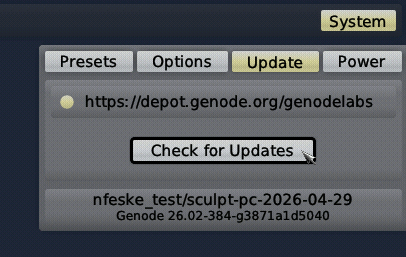
|
The upper part of the dialog allows you to select the system-image provider. By default, the provider is set to the one of your currently running system image. But you have the option to obtain images from alternative providers, or even add a new custom provider by using the "Edit" button. Under the hood, each listed provider corresponds to a directory in your depot/ at the sculpt partition. When adding a custom provider, it will show up as a new directory there. The lower part of the dialog presents the information about the currently running system image for reference.
The check-for-updates button downloads the information about available images from the selected provider. This information is presented along with the already downloaded images as exemplified in the following screenshot.
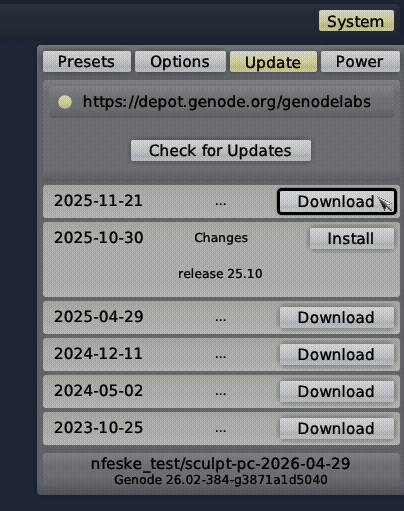
|
The little "..." dots indicate that change-log information is available when clicking on the entry. The download button fetches the image. Once fetched, the download button turns into an install button. You can select any present image for your next boot via the corresponding install button. Under the hood, this operation copies the content of the depot/<provider>/image/sculpt-<board>-<version>/ directory to your /boot/ directory. Note that you can switch back and forth between different versions this way. For example, should a new version not behave to your full satisfaction, you can easily switch back to the previous one by using the install button of the original version. As a precaution, it is good to have downloaded the initial Sculpt version you are using. In the worst case, should a new version fail to boot, you can still manually copy this downloaded original version from your local depot/ to your boot directory using a live USB system.
Once an image is installed, the dialog tells you "reboot to activate". One way to do that is by changing the system state in /model/system to "reset".
Window management
The best starting point for realizing a Sculpt-OS-based desktop scenario is the window-manager preset. Applications connected to the window manager (wm) appear with window decorations that can be used to arrange, maximize, or close the window. To move a window, either drag the window title with the mouse, or drag the center area (the inner 50%) of the window while holding the Super key. For changing the size of a window, either drag the window border with the mouse, or drag the window area nearby the border while holding the Super key.
Keyboard input is received by the currently focused window, which appears brighter than non-focused windows. The keyboard focus follows the pointer position whenever the pointer is moved. It can also be changed by the keyboard shortcut Super-Tab, which cycles through the most recently focused windows. The maximized state of the currently focused window can be toggled via the keyboard shortcut Super-Return.
Some applications like games may grab the pointer when clicking into their window. One can regain the control over the pointer at any time by pressing the Super key.
Sculpt OS supports virtual desktops, in the following called screens. One can switch between screens using the key combinations Super+1, Super+2, Super+3, etc. New windows always appear at screen 1. To move a window to a different screen, press the number key of the targeted screen while dragging the window. Alternatively, one can take the currently focused window to another screen using the key combination Super-Shift-N where N is the screen number.
When using multiple displays in panoramic mode, screens 1-3 appear on the primary display, screens 4-6 on the second display, and screens 7-9 on a third display, if present. If a display is not present, the corresponding screens fall back to the primary display. So all windows remain reachable whenever a display is disconnected. By default, the role of a display (primary, secondary, ternary) is assigned according to the display's position within the panorama from left to right. So one can change their role by adjusting their order in the display driver's configuration dialog as described in Section Multi-monitor support.
The window layout is captured in the file /rw/recall/window_layouter/recall/25.10 named after the version of the file format. The file can be edited manually. When saved, the changes take immediate effect, which offers an alternative way for manipulating windows:
-
Changing the order of assign rules to change the window-stacking order.
-
Move or resize a window by changing the corresponding xpos, ypos, width, and height attributes.
-
Maximize/un-maximize a window by setting the maximized attribute to "yes" or "no".
-
Change the assignment of screens to physical displays.
As the rules file is a regular file, one can create a backup of the current window layout by copying the file, and switch between different layouts by overwriting the rules file by a different version. The window layout is preserved across reboots because the rules file is a regular file stored on the used file system, except when using the RAM file system.
Multi-monitor support
Sculpt OS supports the use of multiple monitors on PCs with Intel graphics. By default, all connected monitors display the same mirrored image. This default can be tweaked using the configuration dialog hosted in the intel fb node of the component graph.
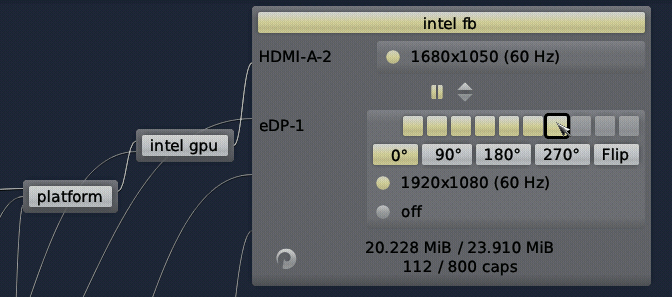
|
The dialog displays a list of present monitors labeled after their respective connectors. A mode can be selected for each connector when clicking on the connector entry. In-between the entries there are two buttons. The link button (showing two vertical lines) is a toggle that defines whether the two adjacent entries are mirrored or operated as discrete monitors. It is enabled by default so that all monitors participate in the mirroring. By deselecting the last enabled link button, the entry below the button becomes a discrete (non-mirrored) monitor.
The swap button allows for changing the order of the monitors, which has two effects. First, the resolution of the very first monitor defines the size for mirrored image. Hence, by changing the order of mirrored monitors, one can pick the preferred image size. Second, the order of discrete monitors defines the layout of a panorama, which spans the mirrored image on the left followed by each discrete monitor towards the right.
When using discrete monitors, Sculpt OS places the Leitzentrale GUI on the monitor that currently hosts the mouse pointer. When moving the pointer from one monitor to another, the GUI moves with it. Should the monitors have different resolutions, Sculpt OS automatically adjusts the system-global font configuration according to the monitor used. Should this effect on all users of the system-global font configuration (like terminal windows hosted on yet another monitor) be undesired, one can define a static font configuration by changing the managed attribute of /model/child/font to no.
If a monitor supports brightness control, the brightness can by adjusted in the mode selection of the monitor. The mode selection also offers the option to switch off the monitor, except for the monitor currently hosting the Leitzentrale GUI. As a note of caution, there is currently no safety mechanism against locking oneself out of the user interface by selecting a mode not properly handled by a single connected monitor.
The framebuffer-driver configuration as driven by the interactive dialog can be found at /model/fb. Several multi-monitor profiles (like office, home, train) can be realized by merely replacing this file. The panorama is defined at the /model/child/gui configuration, specifically the capture node. The capture node assigns the viewports on the panorama as captured by the framebuffer driver. Sculpt OS manages the panorama only if the capture node has the attribute managed set to yes. By setting managed to no, arbitrary panorama layouts can be realized using the attributes xpos, ypos, width, and height.
For diagnostic purposes, the /report/intel_fb/connectors report contains the connector state as currently observed by the framebuffer driver. Furthermore, /report/gui/panorama contains the information about the panorama and the components participating in capturing the panorama.
Audio
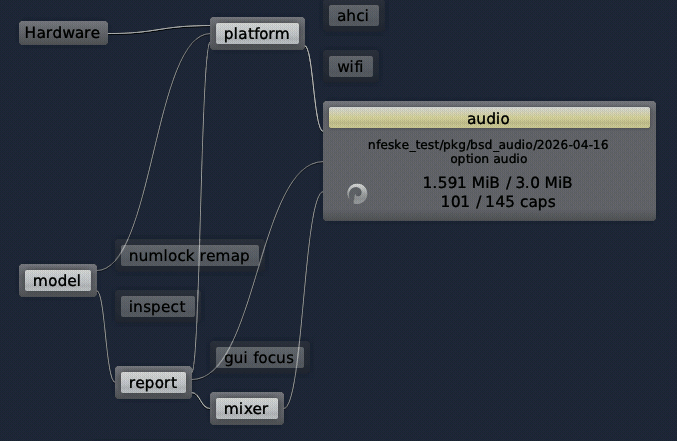
Sculpt OS supports playback and recording of audio as an optional feature that is available at the options tab of the system menu. The central component is the mixer, which provides the record and play services to the audio driver(s) and applications.
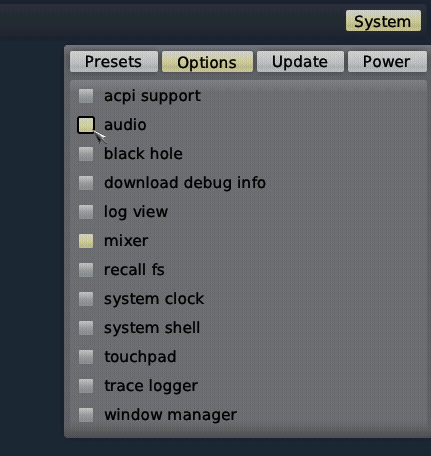
|
The audio driver is a mere client of the mixer. It can be started and removed without interfering with the liveliness of audio applications.
|
By default, the mixer keeps the microphone muted and mixes the playback of all applications at an equal volume. This policy is defined by the mixer's configuration at /model/option/mixer, which you can find accompanied by instructive comments. For example, uncomment the play nodes referring to mic_left and mic_right to unmute the mic, or tweak the volume values. For tweaking the configuration, it is useful to know the labels of the clients. One can obtain this information from the mixer's report at /report/mixer/state. You can find the mixer configuration described in more detail in its documentation.
Analogously to the mixer, the audio driver can be configured dynamically by tweaking the values in /model/option/audio. For example, you can find the master volume for the whole device there.
Assignment of USB devices to components
Sculpt OS has built-in drivers for USB HID, storage, and network devices, which are started on demand. In addition, individual USB devices can be assigned to components such as virtual machines, webcam drivers, or smartcard drivers. The rules for assigning USB devices to components reside at /model/child/usb. Whereas Sculpt edits these rules concerning HID and storage devices automatically, additional rules can be defined by the user.
The /model/child/usb file contains a few examples that can be taken as a blueprint. The policy nodes refer to clients of the USB component whereas the embedded device nodes represent assignments. The examples take the vendor and product IDs of devices as keys for the assignment.
Note that one device may be present in multiple policies, which works well if only one of the matching clients is running at a time. It is fine to define rules for devices that are not present. As soon as such a device gets plugged in, the assignment will take effect. This is useful when repeatedly plugging and unplugging the same USB device assigned to a virtual machine.
While defining /model/child/usb rules, it is helpful to review the currently attached devices. This information is available at /report/usb/devices. To quickly assign a device to a USB client, it is usually enough to copy the single line of the corresponding device from /report/usb/devices to /model/child/usb and adjust the indentation by two spaces.
System power control
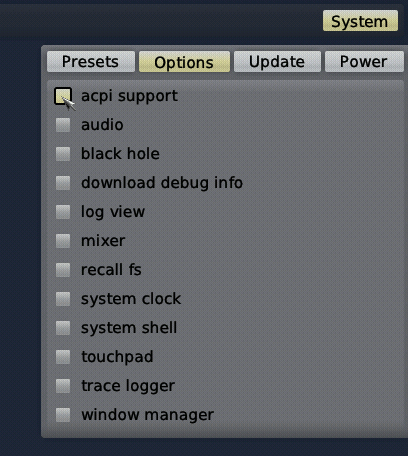
Sculpt OS offers system-power controls like reset, power-down, and standby available as an optional feature. On PC hardware, this functionality requires ACPI support, which can be enabled as option on the system menu.
|
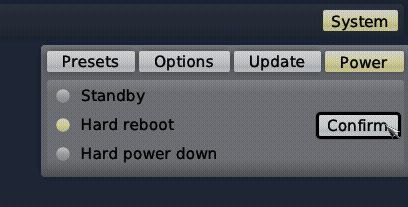
Once enabled, the "acpi support" component appears and the system menu at the upper-right screen corner hosts interactive power controls.
|
Caveats
As suggested by the names of controls, the reset and power-down operations take immediate effect if confirmed. Note that the file-system driver synchronizes file modifications every 10 seconds. So take a breath before powering down or rebooting your machine.
The standby support is highly experimental. The baseline functionality of returning from sleep to an interactively accessible system has been tested on machines with mixed yet promising results.
On most machines, the wifi driver is not able to re-initialize the wifi device after resume. The Lenovo x260 is a notable exception.
Upon resume, Sculpt OS restarts the USB host-controller driver, which implies the restart of all USB clients. E.g., a virtual machine connected to USB will be affected. While accessing any USB storage device, the standby option is deliberately not presented.
The NVMe, AHCI, and Intel GPU drivers are suspend-resume aware, which means that clients of their services are expected to continue operating after resuming from standby. The response of the file-system stack to suspend-resume cycles is not yet thoroughly tested through.
The audio driver is not automatically restarted during the suspend-resume cycle. You may try restarting audio manually.
The limitations will be addressed gradually over time. Feedback about the feature on your specific machine is appreciated. Don't hesitate to post your experience at the Genode users forum.
Touchpad on Intel Gen11+
Touchpads on recent Intel laptops are integrated as I2C HID devices without legacy PS/2 emulation. To support such touchpads, a dedicated driver is needed. Even though Sculpt OS has no built-in touchpad driver, it offers a touchpad driver as an option in the system menu. Of course, you will need to use a USB mouse to initially activate and configure this option.
The driver needs to know a few platform-specific values that must be manually configured at /model/option/touchpad. The configuration is annotated with known values for several laptop models. Adjust the configuration by using the values matching your hardware and restart the touchpad driver to let the new configuration take effect.
Building the boot image
The following steps assume that you have the Genode tool chain installed on a GNU/Linux system. For reference, Ubuntu LTS is known to work well. If you don't know your way around Genode's source tree yet, please consider the "Getting started" section of the Genode Foundations book that is available for download at https://genode.org.
-
Clone Genode's Git repository:
 git clone https://github.com/genodelabs/genode.git
 cd genode
 git checkout -b sculpt-26.04 sculpt-26.04
-
Download the support for the NOVA microkernel
./tool/depot/download genodelabs/bin/x86_64/base-nova/2026-04-30
The content is downloaded to the public/ directory and extracted to the depot/ directory.
-
Download all ingredients for the Sculpt boot image
./tool/depot/download \ genodelabs/pkg/x86_64/sculpt/2026-04-30 \ genodelabs/pkg/x86_64/sculpt_drivers-pc/2026-04-30 -
Create a build directory
./tool/create_builddir x86_64
-
Configure the build directory by editing build/x86_64/etc/build.conf. Most importantly, enable the gems source-code repository where the Sculpt scenario resides. In addition, the libports, ports, pc, dde_linux, dde_rump, and dde_bsd repositories are needed as well.
Second, change the default configuration of the QEMU_RUN_OPT variable to image/disk instead of image/iso. This way, the build process will produce a valid disk image with a GPT partition table instead of a legacy ISO image.
You may also consider enabling parallel build by uncommenting the corresponding line at the top of the file.
-
Prepare GRUB 2, which is needed for booting from the disk image
./tool/ports/prepare_port grub2
-
Create the Sculpt boot image (defined by the run script at repos/gems/run/sculpt_image.run)
make -C build/x86_64 run/sculpt_image KERNEL=nova BOARD=pc DEPOT=omit
The boot image is created at build/x86_64/var/run/sculpt.img.
-
Write the boot image to a USB stick:
sudo dd if=build/x86_64/var/run/sculpt.img of=/dev/sdx bs=1M conv=fsync
Here, /dev/sdx refers to the device node of your USB stick. To determine it, you may inspect the output of dmesg after plugging it in.
Reproducing the system from source
Section Building the boot image presents the creation of the boot image from pre-built packages. You may prefer to build those packages from source, in particular for customizing the system.
Before building the packages, various ports of 3rd-party software need to be prepared. The following command prepares all of them at once:
 <GENODE-DIR>/tool/ports/prepare_port \
      acpica bash coreutils curl dde_bsd dde_rump e2fsprogs-lib \
      expat gdb gmp gnupg grub2 jitterentropy jpeg libarchive libc \
      libdrm libgcrypt libiconv libnl libpng libssh libusb libuvc \
      libyuv linux linux-firmware mesa ncurses nova openssl qemu-usb \
      stb stdcxx sticks_blue_backdrop tcl ttf-bitstream-vera vim \
      virtualbox6 wpa_supplicant x86emu xz zlib
The ingredients of the boot image are defined by the sculpt/default-pc.sculpt file located in the repos/gems/ repository. The default set of software installable at runtime is subsumed by the pkg/sculpt_distribution and pkg/sculpt_distribution-pc packages. You can find the depot recipes for these packages at repos/gems/recipes/pkg/. You may want to create your version of these packages by changing the package provider from genodelabs to <YOU> by adding the line
RUN_OPT += --depot-user <YOU>
to your <build-dir>/etc/build.conf.
To build the boot image including all required depot packages, it's best to instruct the build system to manage the versioning and updating of the depot content automatically by enabling the following line in your build.conf file.
RUN_OPT += --depot-auto-update
With these precautions taken, the execution of the sculpt.run script - as described in Section Building the boot image - implicitly builds all required binary packages from source.
The sculpt_distribution and sculpt_distribution-pc packages can be created independently of the sculpt.run script by using the depot/create tool manually.
 <GENODE-DIR>/tool/depot/create \
      UPDATE_VERSIONS=1 FORCE=1 REBUILD= \
      <YOU>/pkg/x86_64/sculpt_distribution \
      <YOU>/pkg/x86_64/sculpt_distribution-pc
The FORCE=1 argument ensures that source archives are re-created and checked for the consistency with their versions. Whenever the source code of any archive changes, the UPDATE_VERSIONS=1 argument automatically updates its version. Please don't forget to commit the updated hash files. The empty REBUILD= argument limits the creation of binary packages to those that do not yet exist in binary form. If not specified, the command would recompile all packages each time. You may further add -j<N> to parallelize the build process where <N> is the level of parallelism.
To make the created packages available for download from within the running Sculpt system, you must publish them. This involves the archiving, signing, and uploading of the content. The former two steps are covered by the tool/depot/publish_current tool. For more information about working with the depot tool, refer to the package-management documentation.
All options and presets integrated into the boot image are defined in gems/sculpt/default-pc.sculpt and the accompanied files are located at gems/sculpt/option/ and gems/sculpt/deploy/ respectively. Whenever a child defined in the selected options or presets contains a pkg attribute with one or more / characters, it is assumed to be a complete pkg path of the form <USER>/pkg/<NAME>/<VERSION>. Otherwise, it is assumed to be just the pkg name and is replaced by the current version of the current depot user's pkg at system-integration time.
The following article gives further inspiration and practical hints for customizing the Sculpt OS system image.
- Crafting a modded Sculpt OS image in a few moderate steps
Credits
Sculpt is an example system scenario of the Genode project, which is a novel operating-system technology designed and developed by Genode Labs GmbH.
- Genode OS Framework
That said, Genode is not developed in a vacuum. It greatly benefits from the free-software/open-source community. The following projects play a particularly important role for Sculpt OS.
- NOVA microhypervisor
-
Sculpt's kernel is a derivate of NOVA, maintained by Genode Labs. NOVA was originally created by Udo Steinberg https://hypervisor.org.
- Linux kernel
-
Sculpt reuses several Linux subsystems as individual components, in particular the USB stack, the Intel wireless stack, the Intel graphics driver, and the TCP/IP stack.
- NetBSD's rump kernel
-
https://wiki.netbsd.org/rumpkernel/
The file-system support is based on NetBSD kernel code, which became reusable on Genode thanks to the rump kernel project.
- FreeBSD
-
The C runtime that is used by most 3rd-part software is based on FreeBSD's libc.
Device drivers
- WPA supplicant
-
https://w1.fi/wpa_supplicant/ (used by the wireless driver)
- xf86emu
-
https://xorg.freedesktop.org/ (used by the VESA driver)
- OpenBSD
-
https://www.openbsd.org (basis for the audio driver)
- libusb
-
https://libusb.info (used by the webcam driver)
- libuvc
-
https://ken.tossell.net/libuvc/doc/ (used by the webcam driver)
Programs and libraries used within the Unix-like subsystems
- Vim
- ncurses
- GNU coreutils
- GNU bash
- E2fsprogs
Libraries used for the package-management infrastructure
- curl
-
https://curl.haxx.se (basis of the fetchurl tool)
- libssh
- OpenSSL
- XZ Utils
-
https://tukaani.org/xz/ (support for tar.xz archives)
- libarchive
-
https://www.libarchive.org (basis of the extract tool)
- zlib
- GnuPG
-
https://www.gnupg.org (basis of the verify tool)
- Jitterentropy RNG
Applications
- VirtualBox
-
https://www.virtualbox.org (used for hosting virtual machines)
Libraries used for the graphical user interface
- libpng
-
http://www.libpng.org/pub/png/libpng.html (used for decoding PNG images)
- stb
-
https://github.com/nothings/stb (used for rasterizing TrueType fonts)
- Mesa 3D
-
https://mesa3d.org (used for hardware-accelerated 3D graphics)
Crucial tools used during development
- GNU/Linux
-
(various distributions)
- Git
- GNU compiler collection
- GNU binutils
- GNU make
- Tcl
- Expect
- Qemu
- GitHub issues